Using the Tableau Public API to Pull Data
A beginner-friendly walkthrough using Python and Databricks.

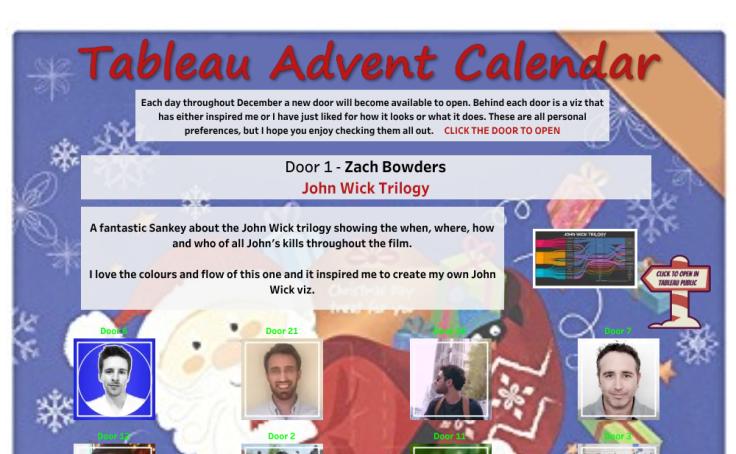
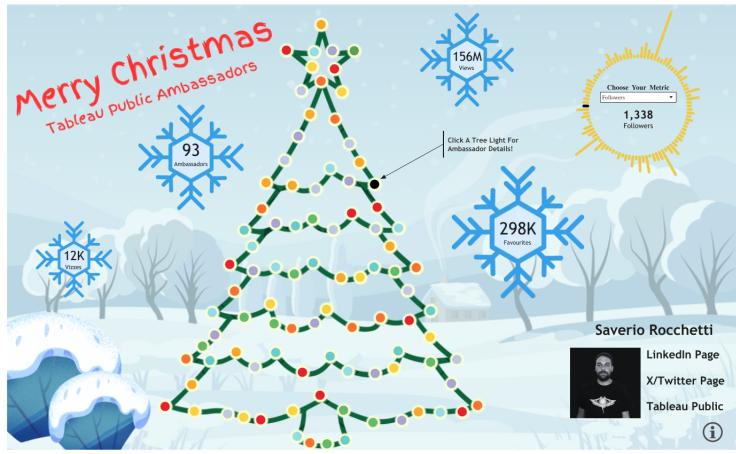
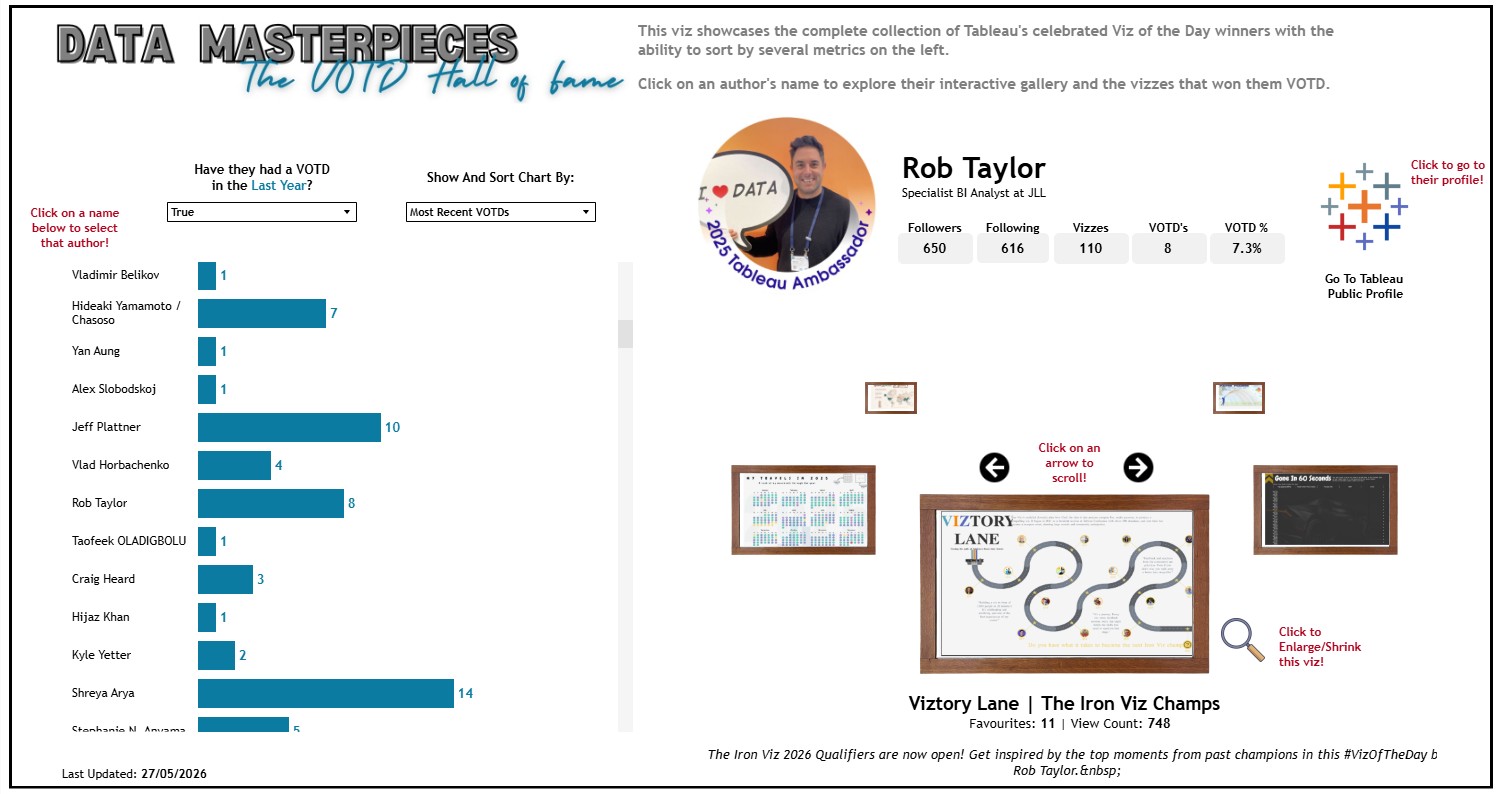
If you have ever wanted to create vizzes like above and wondered how to pull data from Tableau Public automatically, you are in the right place. This post walks through a Python workflow built in Databricks to collect profile and workbook data from Tableau Public using their API. By the end you will understand each step of the process, what the code is doing, and what the output looks like.

What is an API?

An API (Application Programming Interface) is simply a way for two pieces of software to talk to each other. When you visit a Tableau Public profile in your browser, Tableau's servers send back data to display on the page. An API lets you request that same data programmatically, so instead of clicking through a website, you can write code to pull exactly what you need.

Tableau Public exposes several API endpoints (URLs you can call) that return data in JSON format. JSON is just a structured text format that is easy for code to read and process. We will be using three main endpoints in this walkthrough:

However, if you want to dig deeper into the available resources check out Will Sutton's Git Hub repository. This is a fantastic overview and a where I started my learning journey.

The Overall Workflow

  1. Start with a list of Tableau Public usernames
  2. Filter out any blanks and fetch profile info for each user
  3. Pull a list of all their published workbooks
  4. Construct image preview URLs for each workbook
  5. Fetch deeper detail on each individual workbook
  6. Combine everything into one clean table ready for analysis

Each step builds on the one before it. Let's go through them one by one.


Step 1: Set Up Your List of Users

Objective: Create and display a list of Tableau Public profiles to process.

What Is Happening:

  1. A Python list of profiles is defined, including IDs, names, and Tableau Public usernames.
  2. This list is converted into a Spark DataFrame for scalable processing and later use with Spark and Pandas operations.
  3. The DataFrame is displayed for initial verification.

Why: Starting with a structured list of user identifiers (Tableau usernames) allows the subsequent automation to fetch each person's profile and workbook data via the Tableau Public APIs. Using Spark ensures scalability for larger profile lists in the future.

# Create a list called 'profile_list'.
# This list contains one tuple (a group of values).
# Each tuple represents a Tableau Public Profile.
# The three items represent: id, name, and username. The username can be taken from the profile URL.
profile_list = [
    ("1", "Rob Taylor", "rob.taylor6175")
]

# Use Spark's createDataFrame function to turn the list into a Spark DataFrame (a table-like structure).
# We tell Spark the names of the columns: 'id', 'name', and 'username'.
profile_df = spark.createDataFrame(profile_list, schema=['id', 'name', 'username'])

# Display the DataFrame in a nice, readable table format in Databricks.
display(profile_df)

Step 2: Filter And Fetch Profile Information

Objective: Clean up the profile list and gather detailed profile information per ambassador.

What Is Happening:

  1. Blank or null usernames are filtered from the DataFrame.
  2. A filter and limit operation ensures only valid and a manageable set of profiles are processed in initial development/testing.
  3. Profile information is retrieved for each user by:
    • Instantiating a ProfileDataCollector class, which calls the Tableau Public profile API for each username.
    • Parsing and normalizing fields (address, social links/websites, counts, settings).
    • Handling both clean and failed API responses, returning uniform records.
  4. The resulting profiles are collected into a Pandas DataFrame for downstream use and displayed.

Why: Filtering ensures that only valid, actionable Tableau Public usernames are processed, preventing wasteful API calls. Using a collector class modularizes API logic, and explicit parsing of JSON fields (“websites,” “address”) ensures data normalization for analytics downstream. Robust error handling ensures one failing user does not derail the complete process.


The dataframe is filtered and limited to our requirements.

# Filter out blanks and limit to top 10
filtered_df = profile_df.filter(
    (profile_df.username != "") &         # Only keep rows where 'username' is not an empty string
    (profile_df.username.isNotNull())     # Also only keep rows where 'username' is not null (missing)
).limit(12)                                  # Only keep up to 12 rows (even if there are more results)

display(filtered_df)                         # Show the resulting filtered DataFrame as a table in Databricks

The ProfileDataCollector class then loops through each username, calls https://public.tableau.com/profile/api/{username}, and extracts fields including name, title, organisation, follower counts, social links, and location. Two fields needed extra parsing: address (comes back as a single JSON string, split into country/state/city) and websites (a list that gets categorised into LinkedIn, Twitter, GitHub, etc.).

import logging                          # Handles informational messages and error reporting from Python and Spark.
import time                             # Allows us to pause the program ("sleep") between API calls.
import requests                         # A popular library for making HTTP requests to web APIs (like Tableau Public).
import pandas as pd                     # Used for creating and manipulating tables (DataFrames) in Python.
import json                             # For reading and writing data in JSON format (what web APIs usually send).
import re                               # Used for regular expressions (finding patterns in strings).
from pyspark.sql import SparkSession    # SparkSession is the main gateway to Spark.

# Logging level settings
# Reduce Spark messages — only show critical errors, not lots of information or warnings.
logging.getLogger("py4j").setLevel(logging.ERROR)
logging.getLogger("py4j.java_gateway").setLevel(logging.ERROR)
logging.getLogger("py4j.clientserver").setLevel(logging.ERROR)

# Initialize global session and Spark session once, and reuse
SESSION = requests.Session()                                                # Create a web session for API requests (more efficient).
SPARK = SparkSession.builder.appName("ProfileDataCollection").getOrCreate() # Start a Spark session for big data.

#############################################
# SECTION 1: PROFILE DATA
#############################################

class ProfileDataCollector:
    def __init__(self, session=SESSION):
        self.profile_api_base = "https://public.tableau.com/profile/api/"   # Base URL to get a profile's info.
        self.session = session                                              # Store your requests session.

    def parse_address(self, address_field):
        #Purpose: Extracts country, state, city from one big string.
        #If the string is actually valid JSON, it's turned into a dictionary and values are pulled out.
        #If the string is invalid or empty, blank values are returned.
        #This is helpful, as APIs may give you a single block of address info rather than separate fields.
    """Parse the address JSON string into separate fields"""
        try:
            if isinstance(address_field, str) and address_field:
                address_data = json.loads(address_field)   # Convert a string like '{"country":...}' into a dictionary.
                return {
                    'country': address_data.get('country', ''),
                    'state': address_data.get('state', ''),
                    'city': address_data.get('city', ''),
                    'full_address': address_field
                }
        except:
            pass
        return {'country': '', 'state': '', 'city': '', 'full_address': ''}

    def parse_websites(self, websites_field):
        #Purpose: Websites/social links come as a list. This function makes sure every URL gets its correct label (LinkedIn, Twitter, Instagram, etc.).
        #It works for both JSON-string lists and Python lists.
        #For each site, tries to figure out which social site it is based on keywords or the domain name.
        #Fills in the right box (e.g., linkedin_url) so later reporting and filtering is easy.
        """Parse websites array into separate social media columns plus website1/website2"""
        website_data = {
            'linkedin_url': '',
            'twitter_url': '',
            'instagram_url': '',
            'facebook_url': '',
            'youtube_url': '',
            'github_url': '',
            'blog_url': '',
            'website1': '',
            'website2': '',
            'total_websites_count': 0
        }
        
        try:
            if isinstance(websites_field, str) and websites_field and websites_field != '[]':
                websites = json.loads(websites_field)
            elif isinstance(websites_field, list):
                websites = websites_field
            else:
                return website_data
            
            if not websites:
                return website_data
                
            website_data['total_websites_count'] = len(websites)
            
            for site in websites:
                if isinstance(site, dict):
                    url = site.get('url', '')
                    title = site.get('title', '').lower()
                    
                    # First check if title explicitly tells us the category
                    if title == 'website1':
                        website_data['website1'] = url
                    elif title == 'website2':
                        website_data['website2'] = url
                    elif title == 'linkedin.com' or 'linkedin' in title:
                        website_data['linkedin_url'] = url
                    elif title == 'x.com' or title == 'twitter.com' or 'twitter' in title:
                        website_data['twitter_url'] = url
                    elif 'instagram' in title:
                        website_data['instagram_url'] = url
                    elif 'facebook' in title:
                        website_data['facebook_url'] = url
                    elif 'youtube' in title:
                        website_data['youtube_url'] = url
                    elif 'github' in title:
                        website_data['github_url'] = url
                    elif any(blog_word in title for blog_word in ['blog', 'medium', 'substack', 'wordpress']):
                        website_data['blog_url'] = url
                    else:
                        # If title doesn't help, fall back to URL pattern matching
                        if 'linkedin.com' in url.lower():
                            website_data['linkedin_url'] = url
                        elif 'twitter.com' in url.lower() or 'x.com' in url.lower():
                            website_data['twitter_url'] = url
                        elif 'instagram.com' in url.lower():
                            website_data['instagram_url'] = url
                        elif 'facebook.com' in url.lower():
                            website_data['facebook_url'] = url
                        elif 'youtube.com' in url.lower() or 'youtu.be' in url.lower():
                            website_data['youtube_url'] = url
                        elif 'github.com' in url.lower():
                            website_data['github_url'] = url
                        elif 'wordpress.com' in url.lower() or 'medium.com' in url.lower():
                            website_data['blog_url'] = url
                            
                elif isinstance(site, str):
                    # If it's just a URL string, try to categorize by domain
                    url = site
                    if 'linkedin.com' in url.lower():
                        website_data['linkedin_url'] = url
                    elif 'twitter.com' in url.lower() or 'x.com' in url.lower():
                        website_data['twitter_url'] = url
                    elif 'instagram.com' in url.lower():
                        website_data['instagram_url'] = url
                    elif 'facebook.com' in url.lower():
                        website_data['facebook_url'] = url
                    elif 'youtube.com' in url.lower() or 'youtu.be' in url.lower():
                        website_data['youtube_url'] = url
                    elif 'github.com' in url.lower():
                        website_data['github_url'] = url
            
        except Exception as e:
            print(f"Error parsing websites: {e}")
            
        return website_data

    def clean_dataframe_for_spark(self, df):
        #Purpose: Fixes all missing values, ensures each column is the right "type" for Spark and Pandas.
        #Helps prevent failures when you move data from Pandas to Spark.
        #Ensures reporting and visualizations don't break due to nulls or type mix-ups.
        """Clean DataFrame to avoid PyArrow conversion issues"""
        # Convert any None/NaN values to appropriate defaults
        df = df.fillna({
            'totalNumberOfFollowers': 0,
            'totalNumberOfFollowing': 0, 
            'visibleWorkbookCount': 0,
            'total_websites_count': 0,
            'freelance': False,
            'askMeAboutMyViz': False,
            'hideNewWorkbooks': False,
            'searchable': True,
            'showWebsites': False
        })
        
        # Fill string columns with empty strings
        string_cols = ['profileName', 'name', 'title', 'organization', 'bio', 'avatarUrl',
                        'country', 'state', 'city', 'full_address', 'featuredVizRepoUrl',
                        'bannerColour', 'bannerImage', 'createdAt', 'profileView',
                        'linkedin_url', 'twitter_url', 'instagram_url', 'facebook_url',
                        'youtube_url', 'github_url', 'blog_url', 'website1', 'website2',
                        'websites_raw', 'pronouns']
        
        for col in string_cols:
            if col in df.columns:
                df[col] = df[col].fillna('').astype(str)
        
        # Ensure boolean columns are properly typed
        bool_cols = ['freelance', 'askMeAboutMyViz', 'hideNewWorkbooks', 'searchable', 'showWebsites']
        for col in bool_cols:
            if col in df.columns:
                df[col] = df[col].fillna(False).astype(bool)
        
        # Ensure numeric columns are properly typed
        numeric_cols = ['totalNumberOfFollowers', 'totalNumberOfFollowing', 'visibleWorkbookCount', 'total_websites_count']
        for col in numeric_cols:
            if col in df.columns:
                df[col] = pd.to_numeric(df[col], errors='coerce').fillna(0).astype(int)
        
        return df

    def get_author_profiles(self, profile_df, delay=0.5):
        #This is the core method for fetching every user's detailed API profile.
        #Handles conversion, renaming, API calls, error management, and combines individual records into a DataFrame.
        #Parses tricky fields (address, websites) so everything is ready for later reporting/display.
        #Adds a pause to avoid "rate limits" (too many API calls at once).
        
        # Convert Spark DataFrame to Pandas and rename columns to match expected format
        profiles_pandas = profile_df.select('name', 'username').toPandas()
        profiles_pandas = profiles_pandas.rename(columns={
            'name': 'authorDisplayName',
            'username': 'authorProfileName'
        })
        
        unique_authors = profiles_pandas[['authorDisplayName', 'authorProfileName']].drop_duplicates()
        profile_data = []
        
        for _, author in unique_authors.iterrows():
            profile_url = f"{self.profile_api_base}{author['authorProfileName']}"   # Build the API URL for each user.
            try:
                r = self.session.get(profile_url, timeout=30)       # Get the profile as JSON from Tableau Public API.
                r.raise_for_status()                                # If there's an HTTP error, stop!
                profile = r.json()                                  # Convert the API response to a Python dictionary.
                
                address_info = self.parse_address(profile.get('address', ''))     # Separate out address info.
                website_info = self.parse_websites(profile.get('websites', ''))   # Separate out website/social info.
                
                # Capture ALL available fields
                info = {
                    # Original fields (keeping for consistency)
                    'authorDisplayName': author['authorDisplayName'],
                    'authorProfileName': author['authorProfileName'],
                    'Profile_URL': f"https://public.tableau.com/profile/{author['authorProfileName']}",
                    
                    # Core profile fields
                    'profileName': profile.get('profileName', ''),
                    'name': profile.get('name', ''),
                    'title': profile.get('title', ''),
                    'organization': profile.get('organization', ''),
                    'bio': profile.get('bio', ''),
                    'avatarUrl': profile.get('avatarUrl', ''),
                    
                    # Address fields (parsed from JSON)
                    'country': address_info['country'],
                    'state': address_info['state'],
                    'city': address_info['city'],
                    'full_address': address_info['full_address'],
                    
                    # Social/engagement fields
                    'totalNumberOfFollowers': profile.get('totalNumberOfFollowers', 0),
                    'totalNumberOfFollowing': profile.get('totalNumberOfFollowing', 0),
                    'visibleWorkbookCount': profile.get('visibleWorkbookCount', 0),
                    
                    # Profile customization fields
                    'featuredVizRepoUrl': profile.get('featuredVizRepoUrl', ''),
                    'bannerColour': profile.get('bannerColour', ''),
                    'bannerImage': profile.get('bannerImage', ''),
                    
                    # Account/settings fields
                    'createdAt': profile.get('createdAt', ''),
                    'freelance': profile.get('freelance', False),
                    'askMeAboutMyViz': profile.get('askMeAboutMyViz', False),
                    'profileView': profile.get('profileView', ''),
                    'hideNewWorkbooks': profile.get('hideNewWorkbooks', False),
                    'searchable': profile.get('searchable', True),
                    'showWebsites': profile.get('showWebsites', False),
                    
                    # Website fields (both specific platforms AND general website1/2)
                    'linkedin_url': website_info['linkedin_url'],
                    'twitter_url': website_info['twitter_url'],
                    'instagram_url': website_info['instagram_url'],
                    'facebook_url': website_info['facebook_url'],
                    'youtube_url': website_info['youtube_url'],
                    'github_url': website_info['github_url'],
                    'blog_url': website_info['blog_url'],
                    'website1': website_info['website1'],
                    'website2': website_info['website2'],
                    'total_websites_count': website_info['total_websites_count'],
                    
                    # Additional fields
                    'websites_raw': str(profile.get('websites', '')),  # Keep original for reference
                    'pronouns': profile.get('pronouns', ''),
                }
                
            except Exception as e:
                print(f"Error fetching profile for {author['authorProfileName']}: {e}")
                # Create empty record with all fields
                info = {
                    'authorDisplayName': author['authorDisplayName'],
                    'authorProfileName': author['authorProfileName'],
                    'Profile_URL': f"https://public.tableau.com/profile/{author['authorProfileName']}",
                    'profileName': '', 'name': '', 'title': '', 'organization': '', 'bio': '', 'avatarUrl': '',
                    'country': '', 'state': '', 'city': '', 'full_address': '',
                    'totalNumberOfFollowers': 0, 'totalNumberOfFollowing': 0, 'visibleWorkbookCount': 0,
                    'featuredVizRepoUrl': '', 'bannerColour': '', 'bannerImage': '',
                    'createdAt': '', 'freelance': False, 'askMeAboutMyViz': False, 'profileView': '',
                    'hideNewWorkbooks': False, 'searchable': True, 'showWebsites': False,
                    'linkedin_url': '', 'twitter_url': '', 'instagram_url': '', 'facebook_url': '',
                    'youtube_url': '', 'github_url': '', 'blog_url': '', 'website1': '', 'website2': '',
                    'total_websites_count': 0, 'websites_raw': '', 'pronouns': ''
                }
            
            profile_data.append(info)           # Add processed profile to a list.
            time.sleep(delay)                   # Wait a bit before next API call to avoid being blocked/throttled.
        
        # Create DataFrame and clean it for Spark compatibility
        profile_df = pd.DataFrame(profile_data)                     # Turn the list of profiles into a DataFrame for analysis.
        profile_df = self.clean_dataframe_for_spark(profile_df)     # Clean up for Spark compatibility.
        return profile_df

# Usage:
collector = ProfileDataCollector()                              # Create an instance of your class (toolbox).
profile_results = collector.get_author_profiles(filtered_df)    # Run your profile gathering using the filtered usernames.
display(profile_results)                                        # Show the results in a table in Databricks.

Example profile data returned from the API
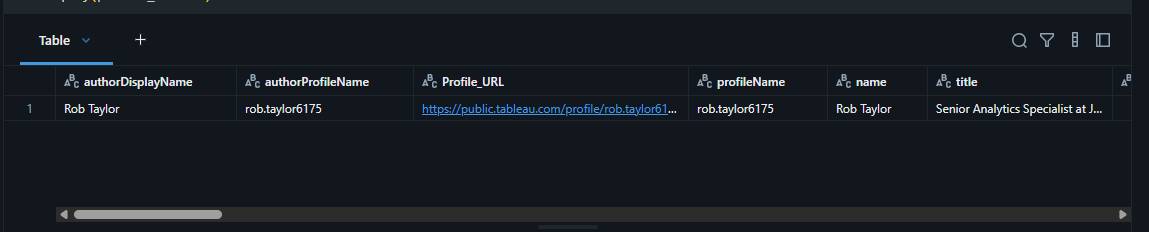
Profile data returned from the API

Step 3: Pull All Published Workbooks

Objective: Retrieve metadata about all visible (public) workbooks for each persons profile.

What Is Happening:

  1. WorkbookDataCollector class is implemented to handle workbook-API interaction.
  2. For each profile, the API is paginated (if necessary) to gather all workbook records (repo URL, title, views, favorites, etc.).
  3. All records are aggregated into a single Pandas DataFrame and displayed.

Why: Tableau Public APIs require pagination for users with many workbooks, and the collector class encapsulates this complexity, abstracting raw API interaction from upstream and downstream workflow stages. This enables analysis of publishing activity, reach, and engagement per ambassador, and sets up further enrichment steps


The WorkbookDataCollector class fetches all publicly visible workbooks per user. The API returns 50 at a time, so the code paginates automatically. Fields captured include; title, repository URL, default view name, view count, favourites count.

class WorkbookDataCollector:
def __init__(self, session=SESSION):
    # Set up: Save the base URL for workbook API and HTTP session for reuse
    self.workbook_api_base = "https://public.tableau.com/public/apis/workbooks"
    self.session = session                   # A requests.Session object for making HTTP requests
    self.batch_size = 50                     # Number of workbooks to pull in each API call (max per request)

def get_all_workbooks_for_author(self, profile_name, total_workbooks, delay=0.5):
    #What's happening: This method will keep requesting workbooks in chunks (batches) until it has them all.
    #The loop allows for authors with dozens or hundreds of workbooks, since the API limits how many can be requested in one go.
    #If there's a temporary error, it skips to the next page so the process doesn't stop.
    """Get all workbooks for a single author with pagination"""
    all_workbooks = []            # Where we store all workbooks as we find them
    start = 0                     # Start position for the API's paging system

    while start < total_workbooks:
        count = min(self.batch_size, total_workbooks - start)     # Fetch up to batch_size, or fewer if at end
        url = f"{self.workbook_api_base}?profileName={profile_name}&start={start}&count={count}&visibility=NON_HIDDEN"
        # The URL requests a slice of workbooks for this user, starting at 'start', retrieving 'count' items
        
        try:
            r = self.session.get(url, timeout=30)     # Make the API request (GET)
            r.raise_for_status()                      # Error if the API returns trouble (like 404/500)
            workbooks_data = r.json()                 # Convert the JSON reply into a Python dictionary
            
            if 'contents' in workbooks_data and workbooks_data['contents']:
                for workbook in workbooks_data['contents']:
                    workbook['authorProfileName'] = profile_name
                    # Attach the author's name (helps for later merges/joins)
                    all_workbooks.append(workbook)    # Add this workbook info to our list
            
            start += self.batch_size                  # Increase "start" to get the next page of results
            time.sleep(delay)                         # Short pause to avoid hitting Tableau too fast
            
        except Exception:
            start += self.batch_size                  # If a request fails, skip to next chunk and continue
    
    return all_workbooks       # Return the full list of all workbooks for this author

def get_all_authors_workbooks(self, profile_results_df, delay=0.5):
    #This method goes through every author/profile in your collected list, and uses the previous method to grab their workbooks if they have any.
    #All workbook data is put into one Pandas DataFrame (table).
    #If none are found, returns a blank table with the right column names.
    """Get workbooks for all authors in the profile results DataFrame."""
    all_workbooks_data = []
    
    for _, author in profile_results_df.iterrows():
        profile_name = author['authorProfileName']         # Get their Tableau Public username
        total_workbooks = author['visibleWorkbookCount']   # How many public workbooks they have
        
        if total_workbooks > 0:
            # If the user has at least one workbook, get all of them with the method above.
            author_workbooks = self.get_all_workbooks_for_author(
                profile_name, total_workbooks, delay
            )
            all_workbooks_data.extend(author_workbooks)    # Add these workbooks to our global list
    
    if all_workbooks_data:
        return pd.DataFrame(all_workbooks_data)            # Turn our master list into a Pandas table
    else:
        # If nobody had workbooks, provide a "blank" DataFrame with the expected columns.
        return pd.DataFrame(columns=['workbookRepoUrl', 'title', 'defaultViewName', 'viewCount', 
                                    'numberOfFavorites', 'authorDisplayName', 'authorProfileName'])

# Create an instance (object) of the WorkbookDataCollector class
workbook_collector = WorkbookDataCollector()

# Use the class to get all workbooks for ALL users in 'profile_results'
all_workbooks_df = workbook_collector.get_all_authors_workbooks(profile_results, delay=0.5)

# Show all the workbooks (as a nice table) in Databricks
display(all_workbooks_df)

Example workbooks data returned from the API
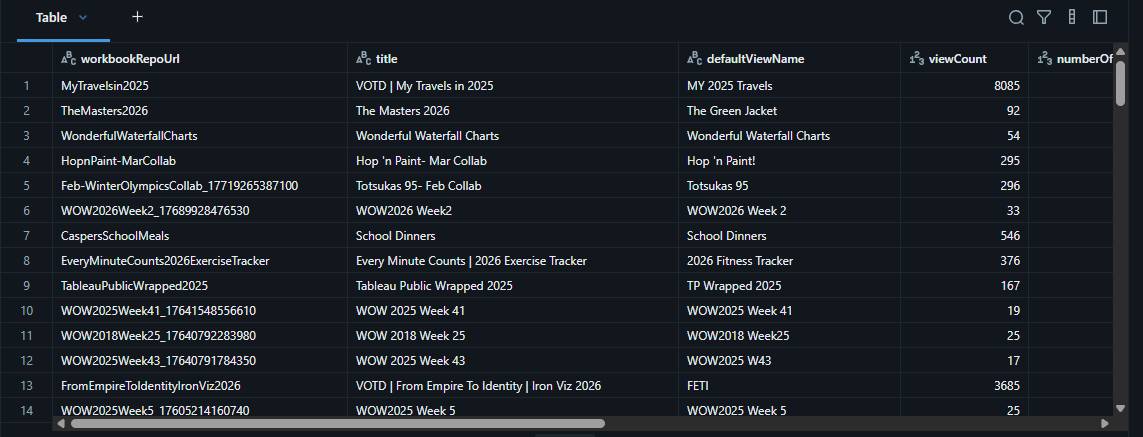
Workbooks table with titles and view counts

Step 4: Build Workbook Preview Image URLs

Objective: Augment the workbook metadata with supplemental fields, notably image preview URLs per workbook.

What Is Happening:

  1. A function add_workbook_columns adds two columns:
    • Workbook_Order – sequential number per author, for ordering/visualization.
    • Workbook_Image_URL – dynamically constructed based on Tableau Public’s static image URL patterns, derived from workbook repo and view URLs.
  2. Patterns are carefully constructed to match Tableau’s public CDN URL definitions (e.g., subdirectory slicing, substitution of segments, prefix/suffix fixing).

Why: Preview images are not part of standard workbook metadata but are highly useful for analytics and dashboarding. Automating this via string logic ensures images can be referenced/displayed without manual post-processing in Tableau or other BI tools


The standard API doesn't include thumbnail URLs, but Tableau hosts static previews that can be constructed from the workbook data. Two new columns are added: Workbook_Order and Workbook_Image_URL.

# Define a function that takes a DataFrame of workbooks as input.
# If the DataFrame is empty (has no rows), just return it unchanged.
def add_workbook_columns(df):
    """Add Workbook Order and Workbook Image URL columns"""
    if df.empty:
        return df
    
    # 1. Add Workbook Order - number workbooks by author starting at 1
    # Why?: If an author has multiple workbooks, you may want to "number" or rank them in a consistent order.
    # Sort the data so that workbooks for each author are together, and in order by the workbook's repo (unique ID).
    # Use groupby and cumcount() to assign 1 to the first workbook, 2 to the second, etc., for each author (not for the whole table).
    df = df.sort_values(['authorProfileName', 'workbookRepoUrl']).reset_index(drop=True)
    df['Workbook_Order'] = df.groupby('authorProfileName').cumcount() + 1
    
    # 2. Add Workbook Image URL using the specified logic
    # Step 1: Create base image URL
    # Create a new column ('ImageURL').
    # Build the image URL string by concatenating:
    # Base static image URL.
    df['ImageURL'] = ("https://public.tableau.com/static/images/" + 
                      df['workbookRepoUrl'].str[:2] + "/" +             # The first two letters of the workbookRepoUrl (Tableau's folder rules).
                      df['defaultViewRepoUrl'] + "/4_3.png")            # The workbook's "defaultViewRepoUrl" (path to the main visual).
                                                                        # "/4_3.png" (the standard file suffix for preview thumbnails).

    # These string replacements fix quirks in Tableau's URL format, where:
    # Step 2: Replace /sheets/ with /
    df['ImageURL'] = df['ImageURL'].str.replace('/sheets/', '/', regex=False)
    
    # Step 3: Replace // with /_/ (but not the https://)
    df['ImageURL'] = df['ImageURL'].str.replace('//', '/_/', regex=False)
    
    # Step 4: Fix the https:/_/ back to https://
    df['Workbook_Image_URL'] = df['ImageURL'].str.replace('https:/_/', 'https://', regex=False)
    
    # Drop the intermediate ImageURL column
    # Remove the now-unneeded intermediate "ImageURL" column, keeping only the final, correct 'Workbook_Image_URL' column.
    df = df.drop('ImageURL', axis=1)
    
    return df

# Apply the function to your workbooks DataFrame
# Call your function to process and enhance your table of workbooks.
all_workbooks_df = add_workbook_columns(all_workbooks_df)

# Show all the workbooks (as a nice table) in Databricks
display(all_workbooks_df)

Step 5: Get Deeper Workbook Details

Objective: For each workbook, retrieve and enrich with low-level metadata, such as precise size, creation/update timestamps, and official author attribution.

What Is Happening:

  1. SingleWorkbookCollector class batches calls to the single-workbook endpoint.
  2. For each unique workbook, fields including attributions, publish/update dates (as provided in ms since epoch), and file size (bytes) are extracted.
  3. Helper functions convert milliseconds to datetime, bytes to human-readable format, MB, GB, etc.
  4. DataFrame is cleaned, new fields added, and then displayed.
  5. Status/progress print statements are included for traceability on larger runs.

Why: Expanding from summary to detailed workbook data enables richer analytics (e.g., storage analysis, publishing cadence, collaboration trends via attribution, etc.). Conversion and normalization (dates, sizes) are vital for analysis in BI platforms and for communicating findings with stakeholders.


A separate single-workbook API endpoint returns: attribution info (for collaborations), creation/publish/update dates (as Unix timestamps in ms, converted to readable datetimes), and file size (converted to KB/MB/GB).

class SingleWorkbookCollector:
# Set up: Save the base URL for workbook API and HTTP session for reuse
def __init__(self, session=SESSION):
    self.single_workbook_api_base = "https://public.tableau.com/profile/api/single_workbook/"
    self.session = session          # A requests.Session object for making HTTP requests

def convert_timestamp_to_date(self, timestamp):
    # Tableau returns dates as numbers ("Unix timestamps"), this converts them (from ms) to readable dates.
    """Convert Unix timestamp in milliseconds to readable date"""
    try:
        if pd.isna(timestamp) or timestamp == 0:
            return None
        # Convert milliseconds to seconds and then to datetime
        return pd.to_datetime(timestamp, unit='ms')
    except:
        return None

def convert_bytes_to_readable(self, bytes_size):
    # Converts a file size in bytes to a friendly string like "2 MB" or "1.05 GB".
    """Convert bytes to human readable format"""
    try:
        if pd.isna(bytes_size) or bytes_size == 0:
            return "0 B"
        
        bytes_size = float(bytes_size)
        
        # Define the units
        units = ['B', 'KB', 'MB', 'GB', 'TB']
        
        # Find the appropriate unit
        unit_index = 0
        while bytes_size >= 1024 and unit_index < len(units) - 1:
            bytes_size /= 1024
            unit_index += 1
        
        # Format to 2 decimal places, but remove trailing zeros
        if bytes_size == int(bytes_size):
            return f"{int(bytes_size)} {units[unit_index]}"
        else:
            return f"{bytes_size:.2f} {units[unit_index]}"
            
    except:
        return "0 B"

def convert_bytes_to_mb(self, bytes_size):
    # For analysis, sometimes you want a pure number (e.g., 19.7 MB), these help you get that directly.
    """Convert bytes to megabytes (decimal)"""
    try:
        if pd.isna(bytes_size) or bytes_size == 0:
            return 0.0
        return round(float(bytes_size) / (1024 * 1024), 2)
    except:
        return 0.0

def convert_bytes_to_gb(self, bytes_size):
    """Convert bytes to gigabytes (decimal)"""
    try:
        if pd.isna(bytes_size) or bytes_size == 0:
            return 0.0
        return round(float(bytes_size) / (1024 * 1024 * 1024), 3)
    except:
        return 0.0

def clean_workbook_dataframe_for_spark(self, df):
    # Makes all fields consistently formatted for easier analysis and merging in Spark/Pandas/Databricks.
    # Adds readable and convenient versions of storage and date fields.
    """Clean DataFrame and convert timestamps to proper dates and sizes to readable format"""
    if df.empty:
        return df
        
    # Fill string columns
    string_columns = ['attributions_0_authorDisplayName', 'attributions_0_authorProfileName', 'defaultViewName']
    for col in string_columns:
        if col in df.columns:
            df[col] = df[col].fillna('').astype(str)
    
    # Convert timestamp columns to proper dates
    timestamp_columns = ['createdAt', 'firstPublishDate', 'lastPublishDate', 'lastUpdateDate']
    for col in timestamp_columns:
        if col in df.columns:
            # First ensure it's numeric
            df[col] = pd.to_numeric(df[col], errors='coerce').fillna(0)
            # Then convert to datetime
            df[f'{col}_datetime'] = df[col].apply(self.convert_timestamp_to_date)
            # Keep original timestamp
            df[col] = df[col].astype('int64')
    
    # Handle size column with multiple formats
    if 'size' in df.columns:
        df['size'] = pd.to_numeric(df['size'], errors='coerce').fillna(0).astype('int64')
        # Add readable size formats
        df['size_readable'] = df['size'].apply(self.convert_bytes_to_readable)
        df['size_mb'] = df['size'].apply(self.convert_bytes_to_mb)
        df['size_gb'] = df['size'].apply(self.convert_bytes_to_gb)
        
    return df

def get_single_workbook_details(self, workbooks_df, delay=0.5):
    # For each unique workbook, builds the correct API URL, fetches the workbook details.
    # Pulls out several important pieces:
        # Attribution (owner/author info)
        # Publish and update dates
        # File size in bytes
    # Handles API failures gracefully by providing blank/default records, so your workflow won't crash.
    # Waits a moment between calls (delay) to avoid being blocked ("rate limited") by Tableau's servers.
    """Get specific workbook details using the single workbook API"""
    workbook_details = []
    
    # Get unique workbook URLs to avoid duplicates
    unique_workbooks = workbooks_df[['workbookRepoUrl', 'authorProfileName']].drop_duplicates()
    
    for idx, (_, workbook) in enumerate(unique_workbooks.iterrows()):
        workbook_repo_url = workbook['workbookRepoUrl']
        author_profile = workbook['authorProfileName']
        
        if pd.isna(workbook_repo_url) or workbook_repo_url == '':
            continue
            
        api_url = f"{self.single_workbook_api_base}{workbook_repo_url}?"
        
        try:
            response = self.session.get(api_url, timeout=30)
            response.raise_for_status()
            workbook_data = response.json()
            
            # Extract attributions data (author info)
            attributions = workbook_data.get('attributions', [])
            attribution_author_display_name = ''
            attribution_author_profile_name = ''
            
            if attributions and len(attributions) > 0:
                first_attribution = attributions[0]
                attribution_author_display_name = first_attribution.get('authorDisplayName', '')
                attribution_author_profile_name = first_attribution.get('authorProfileName', '')
            
            # Extract only the required fields
            details = {
                'workbookRepoUrl': workbook_repo_url,
                'authorProfileName': author_profile,
                'attributions_0_authorDisplayName': attribution_author_display_name,
                'attributions_0_authorProfileName': attribution_author_profile_name,
                'createdAt': workbook_data.get('createdAt', 0),
                'defaultViewName': workbook_data.get('defaultViewName', ''),
                'firstPublishDate': workbook_data.get('firstPublishDate', 0),
                'lastPublishDate': workbook_data.get('lastPublishDate', 0),
                'lastUpdateDate': workbook_data.get('lastUpdateDate', 0),
                'size': workbook_data.get('size', 0)
            }
            
            workbook_details.append(details)
                
        except Exception as e:
            # Create empty record for failed requests
            details = {
                'workbookRepoUrl': workbook_repo_url,
                'authorProfileName': author_profile,
                'attributions_0_authorDisplayName': '',
                'attributions_0_authorProfileName': '',
                'createdAt': 0,
                'defaultViewName': '',
                'firstPublishDate': 0,
                'lastPublishDate': 0,
                'lastUpdateDate': 0,
                'size': 0
            }
            workbook_details.append(details)
        
        time.sleep(delay)
    
    # Create DataFrame and clean it
    if workbook_details:
        details_df = pd.DataFrame(workbook_details)
        details_df = self.clean_workbook_dataframe_for_spark(details_df)
        return details_df
    else:
        return pd.DataFrame()

# Run the single workbook collection
single_workbook_collector = SingleWorkbookCollector()       # Builds the collector object.
workbook_details_df = single_workbook_collector.get_single_workbook_details(all_workbooks_df, delay=0.5)    # Fetch and process details for all the workbooks you have.

display(workbook_details_df) # Show the detailed results as a DataFrame if available.

Example workbook detail data returned from the API
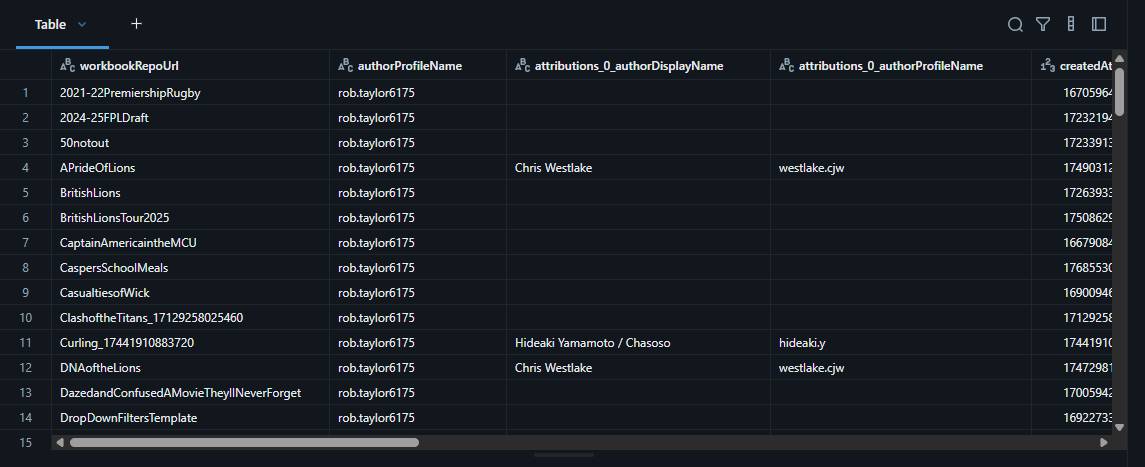
Workbook detail table with attributions and dates

Step 6: Combine Everything

Objective: Merge all previous outputs into a final, unified DataFrame per profile per workbook, suitable for analytics/reporting.

What Is Happening:

  1. The profile, workbook summary, and workbook detail DataFrames are joined, aligning by keys (authorProfileName, workbookRepoUrl).
  2. Additional diagnostics (e.g., count of profiles without associated workbooks) are printed to guide QA.
  3. Final result is displayed, structured with all profile/workbook/detail attributes in columns.

Why: Combining all sourced/enriched data into a single table supports flexible downstream reporting, BI dashboarding, or export and preserves all context (profile, activity, engagement, content, technical/operational details) in a unified schema.


A series of left joins brings all three datasets together into one flat tableand keeps every profile row even if workbook data is missing, ensuring no records are dropped.

# Updated Step 5: Combine All Data Including Specific Workbook Details

def combine_all_data(profile_results, workbooks_df, workbook_details_df):
    """Combine profile, workbook, and detailed workbook information"""

    # First merge profile with workbooks (as before)
    # Start by merging the profile info (profile_results) with the list of their workbooks (workbooks_df).
    combined_df = profile_results.merge(
        workbooks_df,
        on='authorProfileName', #Both DataFrames have a column called 'authorProfileName', so use that as the key.
        how='left' #Keep all rows from profiles, and add workbook info when it exists. If there are profiles without any workbooks, their info is kept but workbook columns will be empty (null).
    )

    # Then merge with workbook details if available
    if not workbook_details_df.empty: #If workbook detail data exists, merge it in (add extra info for each workbook).
        combined_df = combined_df.merge(
            workbook_details_df,
            on=['workbookRepoUrl', 'authorProfileName'], #Use both 'workbookRepoUrl' and 'authorProfileName' as the key columns (makes sure the merge is accurate, since repo URLs are unique per author).
            how='left' #Still use this so that if a workbook detail is missing, you'll still have the basic record.
        )

    return combined_df

# Combine all data
final_combined_df = combine_all_data(profile_results, all_workbooks_df, workbook_details_df)    #Run the merger.
display(final_combined_df)  #Show the fully combined, enriched table. Each row contains profile info, workbook metadata, and (if available) detailed info for each workbook.

Example final combined table, one row per workbook
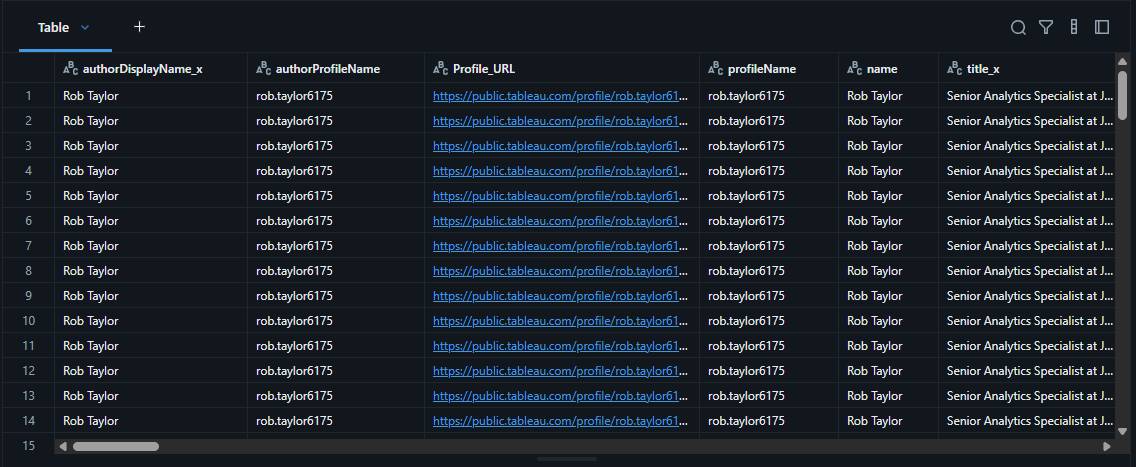
Final combined table — one row per workbook

Now You Have Your Data, What Can You Do With It?

The Last Thread

Looking back at this walkthrough, what looks like one long script is really a chain of small, repeatable steps. You start with usernames, call the same endpoints Tableau uses in the browser, and end with a flat table you can drop into a viz, a dashboard, or a scheduled job. The unglamorous parts; pagination, pauses between requests, cleaning nulls before Spark sees them, are what turn a clever API call into something you can run every week without babysitting it. Learning how to do this really allowed me to play with the vizzes on my Tableau Public profile and create some really fun things.

If you build your own version, start with a single profile and prove each step before you widen the list. Will Sutton's repository is still the best place to explore what is available; this post is just one path through it. I'd love to see what you make with the data; portfolio showcases, engagement tracking, collaboration maps, and if something in the code does not behave the way you expect, that is usually where the learning starts.

Rob.